How to Find myshopify.com URL
Need to find a store’s original backend myshopify.com URL? Whether it is for your own store or someone else’s, here are the 3 fastest ways to do it.
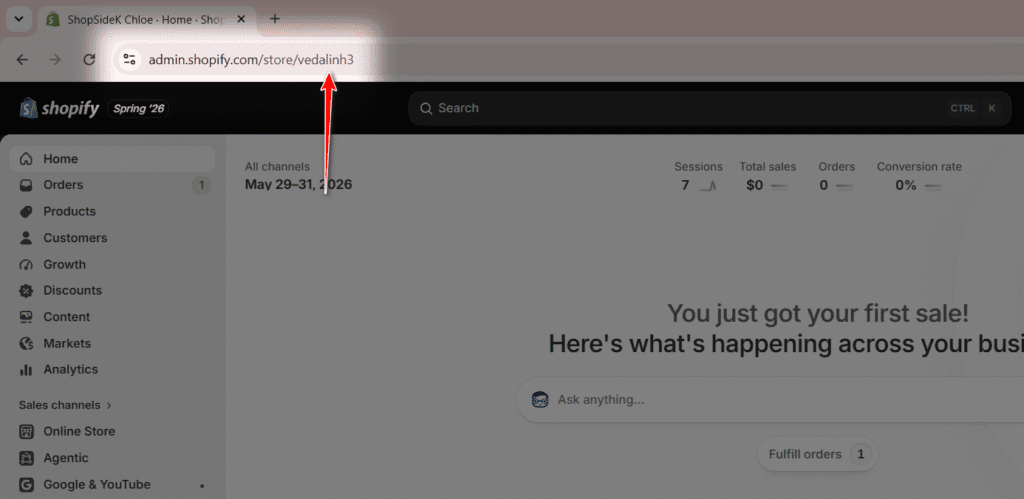
Method 1: Check Your Admin Address Bar (For Store Owners)
Shopify uses a centralized admin layout, making it easy to find your unique handle directly from your browser.
- Log in to your Shopify admin dashboard.
- Look at your browser’s address bar. The URL will look like this: admin.shopify.com/store/yourstorename
- Get your URL: Copy the handle at the very end of the text string (after /store/) and simply add .myshopify.com to it.
- Example: If it says /store/vedalinh3, your URL is vedalinh3.myshopify.com.
Method 2: Check Your Domain Settings (For Store Owners)
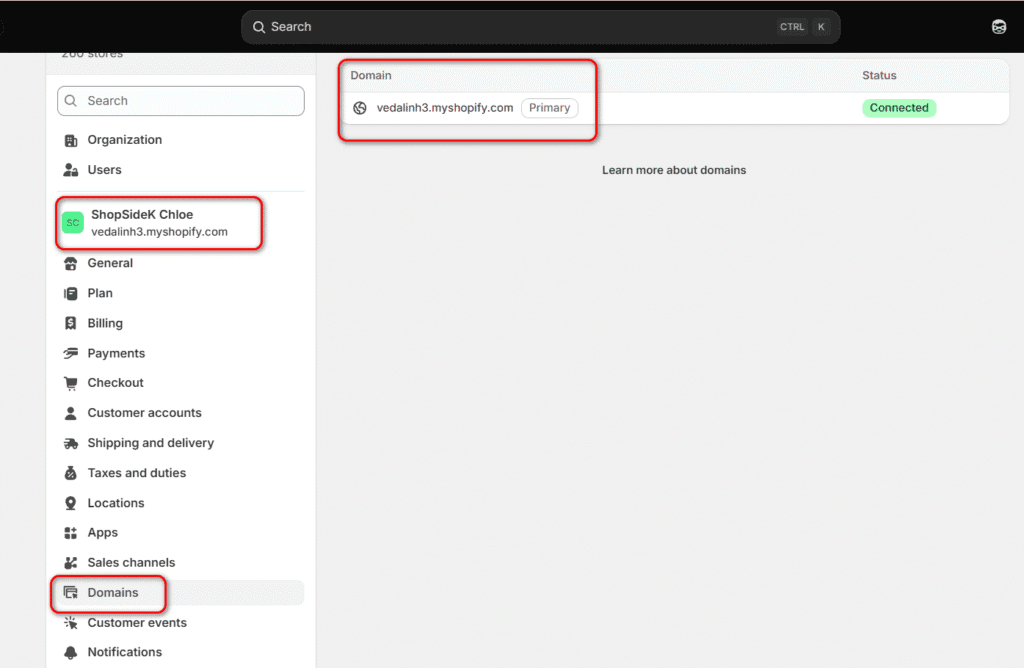
If you want to see the full URL written out cleanly by the system without looking at the address bar:
- Go to your Shopify admin dashboard.
- Click Settings (the gear icon at the bottom left).
- Click on Domains in the sidebar.
- Your original myshopify.com address will be explicitly listed there as your primary login domain.
Method 3: Inspect the Page Source (For Competitors or Other Stores)
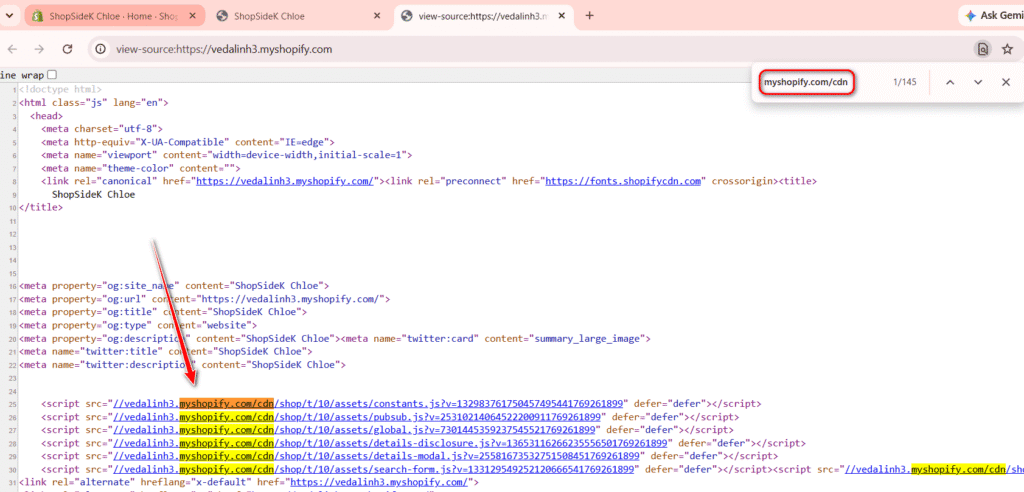
If you want to find the backend URL of a shop you don’t own—even if they use a fully custom domain name—you can find it hidden in their website code.
- Open the store’s website in any desktop browser.
- Right-click anywhere on the page and select View Page Source (or press Ctrl + U).
- Press Ctrl + F (Windows) or Cmd + F (Mac) to open the search bar.
- Type .myshopify.com and hit Enter to find the highlighted backend domain.
💡 Pro Tip: If the direct search yields too many results, search for Shopify.shop or myshopify.com/cdn in the code. These strings always point directly to the store’s original subdomain.