

Your orders are steady and you want one more item on some of them without putting the sale at risk. A Shopify post-purchase upsell does that: after the customer pays, and before the order confirmation, they see one offer they can accept with a single click. The catch is reach. Shopify skips the page for wallets such as Apple Pay, for installment plans, gift cards, other non-card payments and orders in another currency, so part of your buyers never see it. Start with a cheap refill or accessory tied to what they just bought, at around 10% off.
How does a post-purchase upsell work on Shopify?
A post-purchase upsell is a page that a checkout app adds after the customer has paid and before they see the order confirmation. Shopify lets one app run that page at a time: you pick it in Settings > Checkout, in the Post-purchase page section.
The customer’s card is already stored from checkout, so they can accept without typing their payment details again. In Kaching Post Purchase Upsell, an accepted item is added to the original order instead of creating a separate one. A customer can accept up to three post-purchase offers on one checkout.
While the offer is open, the order waits. Shopify puts a fulfillment hold on every order going through the post-purchase flow and lifts it one hour after checkout if the customer never finishes. In Kaching, the order shows the fulfillment status On Hold and is released when the customer accepts or declines every offer, or once 60 minutes have passed. If a 3PL or a fulfillment app picks up your orders automatically, ask whether it waits for Shopify’s fulfillment holds; an order that ships before the customer says yes leaves the add-on to go out on its own.
Because the offer only appears after payment, it can’t cost you the original order. Whether that makes it the right first offer, compared with a bundle on the product page or an offer in the cart, is covered in bundle vs upsell. If you’re not sure which offer fits your store at all, the free AOV & Bundle Audit reads your store and points you to one of six results.
Which orders never see a post-purchase offer?
Orders paid with a wallet, an installment plan, a gift card alone or another non-card method, orders in a currency other than your store’s, local delivery orders and orders from outside the Online Store never see a post-purchase offer. Shopify sets these rules for every post-purchase app. Kaching’s help center adds a few cases that come from payment providers and from the offer itself.
| The order | Sees the offer? | What you can do |
|---|---|---|
| Card through Shopify Payments, or Shop Pay | Yes | Nothing |
| Card through another processor | Depends on the gateway; those that keep the card’s CVV aren’t supported | Check the app’s Not shown reasons |
| Apple Pay, Google Pay, Amazon Pay | No | Nothing |
| Klarna, Affirm, Afterpay, Sezzle, Shop Pay Installments | No | Nothing |
| PayPal Express | Only with Automatic Payments approved | Check the status in your PayPal settings |
| Stripe | Newer versions not supported, per Kaching | Check the app’s “Not shown” reasons |
| Gift card only | No; gift card plus a card: yes | Nothing |
| Cash on delivery, bank transfer | No | Nothing |
| Paid in a currency other than your store’s | No | Thank you page offer |
| Local delivery | No | Nothing |
| Not placed through the Online Store | No | Nothing |
| Order under $0.50 | No | Use a 99% code, not 100%, for test orders |
| The offered product is tracked and out of stock | No | Restock, or offer another product |
| Subscription in the order and a subscription on offer | No | Offer a one-time product |
Two rows are on you, not Shopify. PayPal Express needs Automatic Payments: without PayPal’s approval for what it calls Reference Transactions, PayPal buyers don’t see the offer. To check, open Settings > Payments in Shopify, click Manage on your PayPal payment method, and look at the Automatic Payments line. If a third of my orders were PayPal and the status wasn’t “Approved”, I’d sort that out with PayPal before touching the offer.
The other is the product you offer: if inventory is tracked and it runs out, the offer stops showing.
How many of your orders will see it? Check before you install
Count how your last 90 days of orders were paid. In Shopify, go to Orders, click Export, choose Orders by date, set the last 90 days and click Export orders. With more than 50 orders, Shopify emails the file to you and the store owner instead of downloading it. The Payment Method column says how each order was paid, and an order can have more than one. Sort by that column and add up the orders in the payment rows marked “No” above. That column covers only how orders were paid. For currency, use the file from Export transaction histories: its Currency column is the currency each transaction was processed in, while the order export’s Currency is your store’s base currency. Local delivery orders and orders from other sales channels you count from your own order list.
The export won’t always tell you everything. If wallet payments don’t appear as their own method in your file, you’ll undercount them, and the exact count comes after launch: on the app’s Orders page, hover over the Not shown label on an order to see why the offer didn’t appear.
Here is how the count turns into reach, for an example store; replace each number with yours. The store takes 150 Online Store orders a month, and 40% of them are paid with a method that skips the page. 150 × 60% = 90 orders a month see the offer. The section after next puts money on those 90 orders.
What should you offer after checkout?
Offer something the customer can say yes to without thinking: a refill of the consumable they just bought, an accessory for the product in their order, or a second unit as a gift, priced well below what they just spent. The customer has already made the big decision; this one should feel small.
Three settings make the offer fit the order. Trigger it on the products it belongs with, so a phone case only follows a phone. Add an order-total condition if the add-on only makes sense on larger orders. And exclude products that are already in the order, so nobody is offered what they just bought. Kaching’s listing also names targeting by UTM tags, which can tie an offer to traffic from one campaign.
If the customer declines, a downsell can show a second, smaller offer on the same page. A cheaper product works better there than the same product at a deeper discount: a customer who just said no learns nothing good from seeing the same item cheaper a moment later.
How much discount should a post-purchase offer have?
Enough to make the offer feel like a thank-you, and no deeper than the extra acceptances pay for. In this example, 20% off has to win about 19% more acceptances than 10% off just to earn the same contribution profit.
The add-on is a $24 refill with a $6.00 unit cost. It goes in the same parcel, so the only extra handling is $0.50 of pick and pack and there’s no second shipping charge. Payment fees are an assumed 2.9% of the add-on price, with no second fixed fee; if your provider charges one, take $0.30 off each result. These are example numbers; use your own.
| Line | 10% off | 20% off |
|---|---|---|
| Price the customer pays | $21.60 | $19.20 |
| Unit cost | −$6.00 | −$6.00 |
| Pick and pack | −$0.50 | −$0.50 |
| Payment fee (2.9%) | −$0.63 | −$0.56 |
| Contribution profit per add-on | $14.47 | $12.14 |
14.47 ÷ 12.14 = 1.19. So if 5% of the buyers who see the 10% offer accept it, the 20% offer needs about 6% (5 × 1.19 = 5.96%) to break even. How contribution profit is built, and why it’s a better scorecard than AOV, is in does a bundle raise profit or only AOV.
Now the month, with the 90 orders from the reach check:
| Scenario (10% off) | Orders that see it | Add-ons accepted | Extra contribution profit |
|---|---|---|---|
| 40% skip, 5% accept | 90 | 4.5 | $65.12 |
| 40% skip, 2% accept | 90 | 1.8 | $26.05 |
| 60% skip, 5% accept | 60 | 3.0 | $43.41 |
Extra contribution profit = orders that see it × acceptance rate × $14.47. The highest listed plan of Kaching Post Purchase Upsell is $19.99 a month (as of November 2026), so the first row leaves $45.13 after the fee and the second leaves $6.06. The 5% and 2% acceptance rates are illustrations, not benchmarks, and the result turns on them: your own rate shows up in the app after a few weeks. The full plan list, and whether the app is worth its fee next to other post-purchase apps, is in my Kaching Post Purchase Upsell review.
I’d start at 10% and make the deeper discount earn its place in a test. Kaching lets you run an A/B test between offers when you design one, so you can put 10% against 20% and keep the version that makes more contribution profit per order that saw it.
How to set up a post-purchase upsell in Kaching
I installed Kaching Post Purchase Upsell on my development store in November 2026 and went through these screens without publishing an offer; the screenshots below are from that run. Labels can change as the app is updated.
1. Make it your post-purchase app. In Shopify, go to Settings > Checkout. In the Post-purchase page section, under Use an app to add features at checkout after payment, select Kaching Upsell and save. Until it’s selected there, no offer shows, and selecting it is a change to your live checkout.
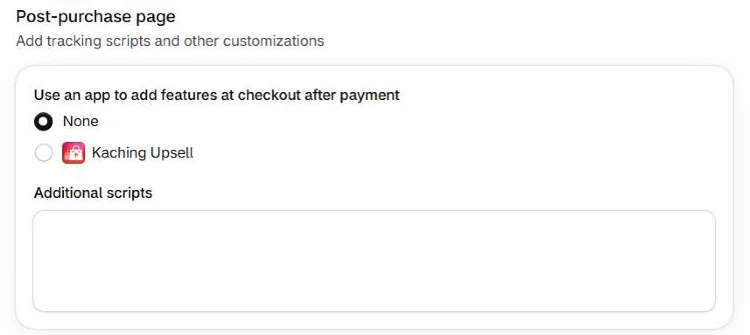
Shopify admin, November 2026
2. Start a manual offer. In the app, the Create upsell offer screen asks what the offer should do. For a refill or an accessory, choose Add a product once, then Set up offer. On a new install, the way in is Set up offers manually; Automatic AI setup lets the app pick the offer instead.
3. Pick the type. On the Triggers tab, under Upsell Type, keep Post Purchase Upsell. The other two are Thank You Page Upsell and Checkout Upsell, which is marked Shopify Plus.
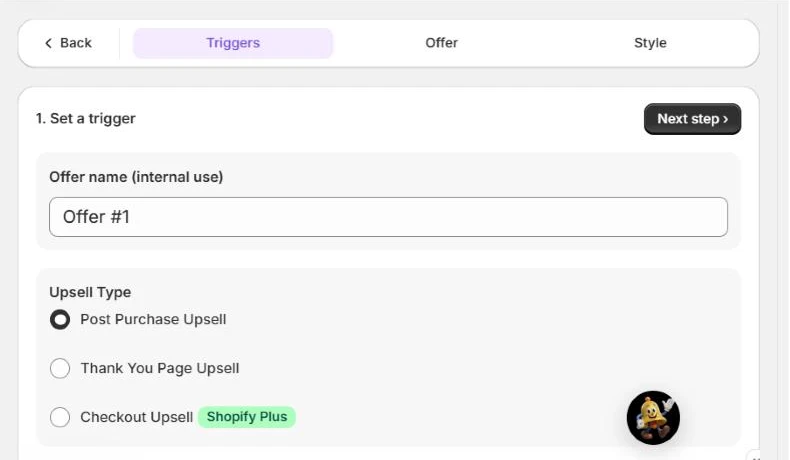
Kaching Post Purchase Upsell admin, November 2026
4. Set the trigger. Under Show upsell when customer orders:, choose Specific selected products or Products in selected collections and pick the products the offer follows. Add condition adds rules such as Order subtotal or Order total.
5. Choose the product and discount. On the Offer tab, click Select product, keep Price on a percentage discount and type your number into Discount: the field filled in 15% when a product was picked, so set it yourself. Shipping starts at Free shipping, which matches the example above. Tick Exclude products already in customer’s order.
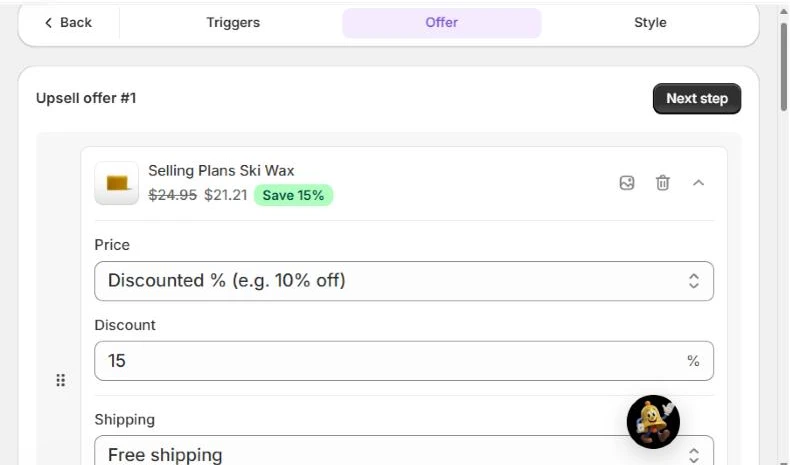
Kaching Post Purchase Upsell admin, November 2026
6. Add a second offer or a downsell (optional). Upsell offer #2 shows after the customer accepts the first offer; Downsell offer shows after they decline it. Create A/B test sits above the preview.
7. Style it. The Style tab lists a Timer section next to Upsell Product and Text. I wouldn’t keep a timer the offer doesn’t really have; a fake deadline on the page right after someone paid you is a poor first impression.
8. Publish and test. Click Publish, or Save as draft to finish later, then place a test order that meets your trigger. Use a 99% discount code, not 100%: post-purchase offers don’t appear on test orders with a 100% discount.
When should you add a Thank you page offer?
Add one when many of your orders are placed in other currencies, because the one-click page never reaches them and Kaching suggests a Thank you page upsell for exactly that case. It works differently: the customer pays for the add-on in a second step instead of one click, and unpaid items are removed after 4 hours by default, which you can change in the app settings.
If you run both, a funnel in Kaching connects offers you’ve already created. With the Hide same product rule, an item the customer accepted on the post-purchase page is removed from the Thank you page offer. Running a post-purchase offer next to a cart offer or a product-page bundle, and keeping their discounts from piling up, is covered in running several offers together.
After launch: what to watch
Three things, in this order.
- Why orders weren’t shown the offer. In the first week, read the Not shown reasons on the app’s Orders page. If one reason covers most of them (PayPal, a currency, an out-of-stock add-on), that’s your first fix, and it’s worth more than any change to the offer.
- Fulfillment. Check that held orders are still shipping on time, and that accepted add-ons go out in the same parcel.
- Contribution profit per order that saw the offer, not the acceptance rate alone. A deeper discount always wins more acceptances; the table above shows how many it needs to be worth it.
Your next step
What I’d do this week: export the last 90 days of orders, count the ones paid with a method the page skips, and check your PayPal Automatic Payments status. If most orders qualify, set up one offer on your best-selling product, with a refill or accessory at 10% off, and leave the downsell and the Thank you page for later.
Kaching Post Purchase Upsell has a 14-day free trial, and its plans step up by orders per month, from $4.99 for 99 orders a month (as of November 2026). It can’t reach wallet, installment or other-currency orders; no post-purchase app can.
(Use code SSK20 for 20% OFF)

